01
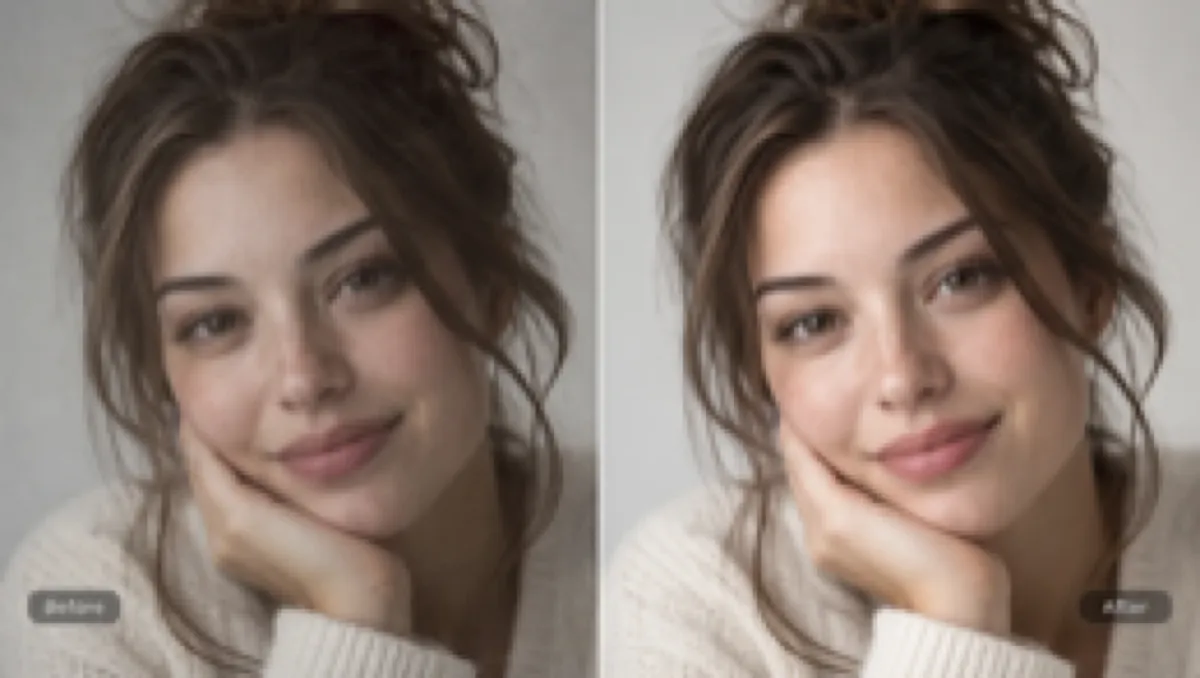
Unblur & Sharpen Portraits
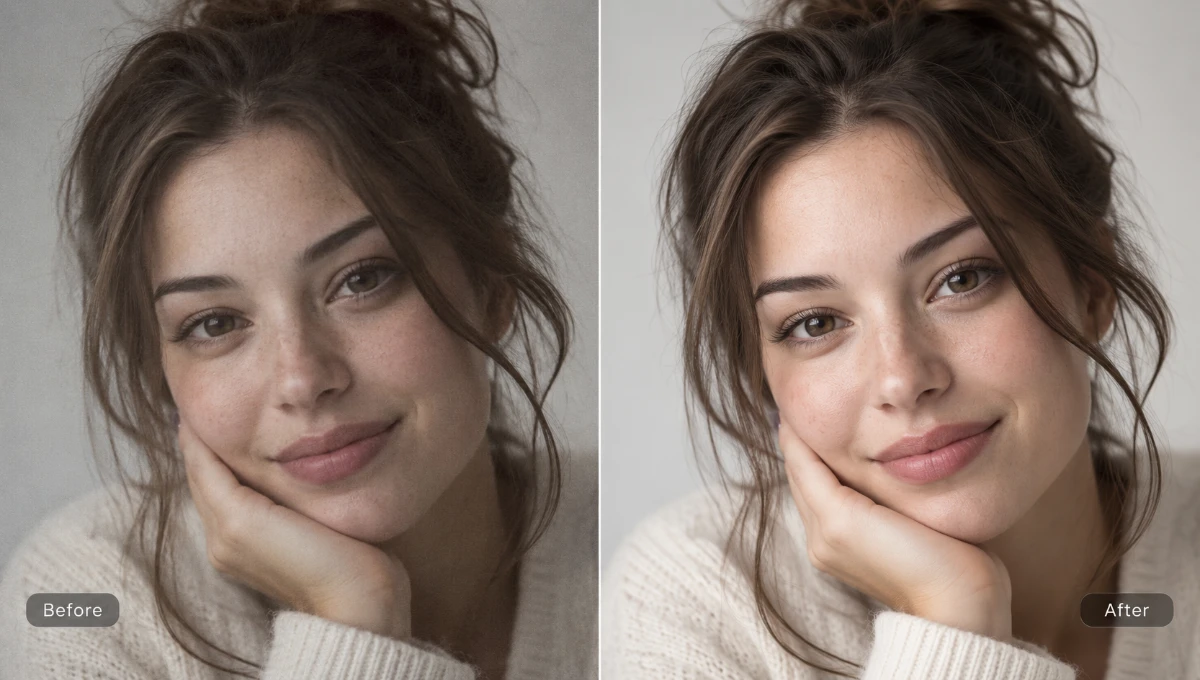
Reconstruct soft facial features, natural skin texture, and hair with AI while preserving true identity without plastic smoothing.
 BeforeAfter
Instantly unblur images, improve photo quality, and restore 4K clarity in 1 click. Free online preview; AI enhance uses daily free credits — no app install.
BeforeAfterDrag the slider to see how AI unblurs edges, recovers facial textures, and restores clarity across different photo types.
01
Reconstruct soft facial features, natural skin texture, and hair with AI while preserving true identity without plastic smoothing.
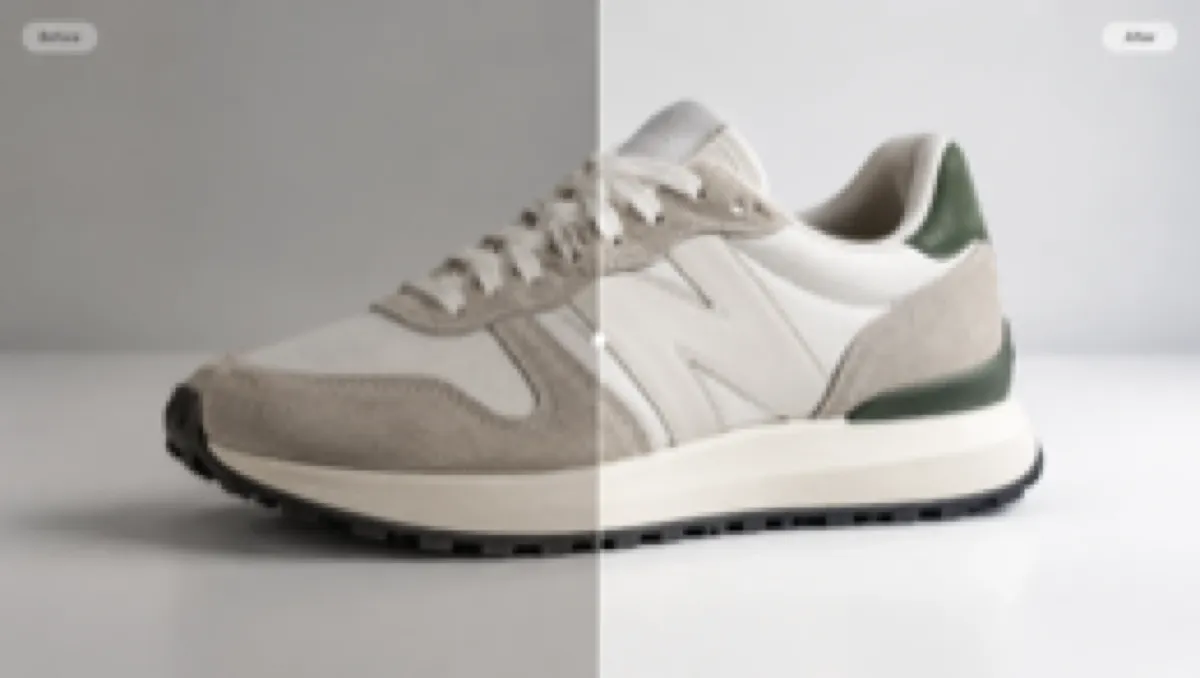
BeforeAfter02
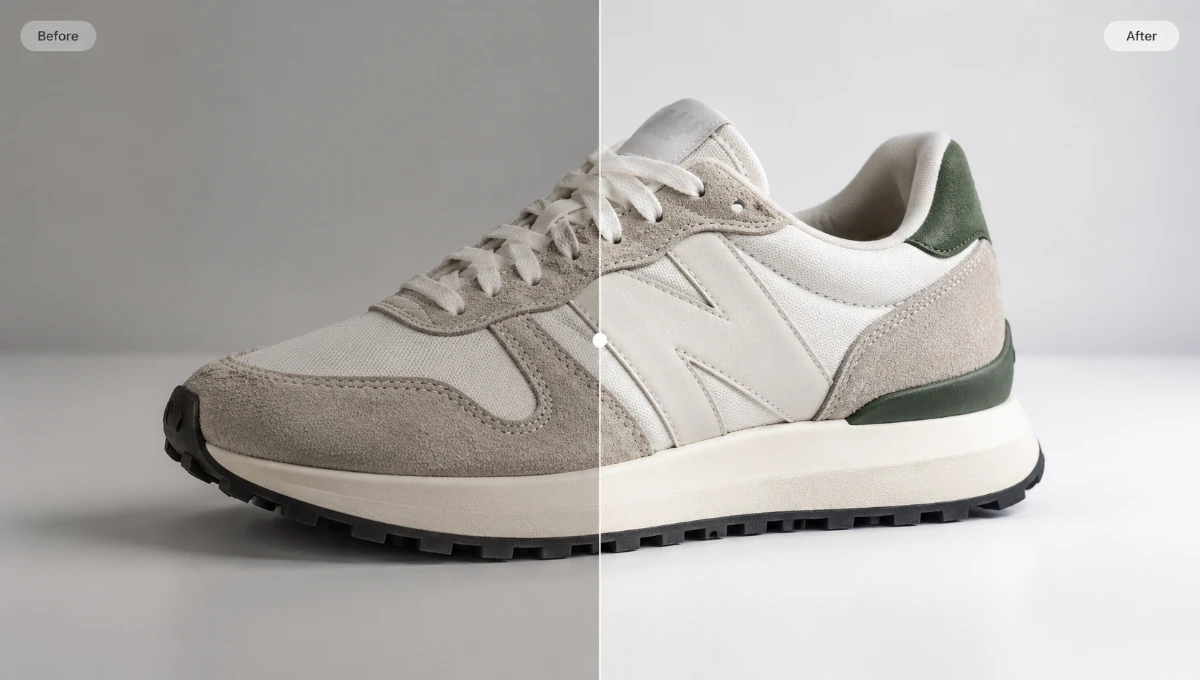
Make seams, labels, material texture, and product edges easier to inspect without changing the item itself.
 BeforeAfter
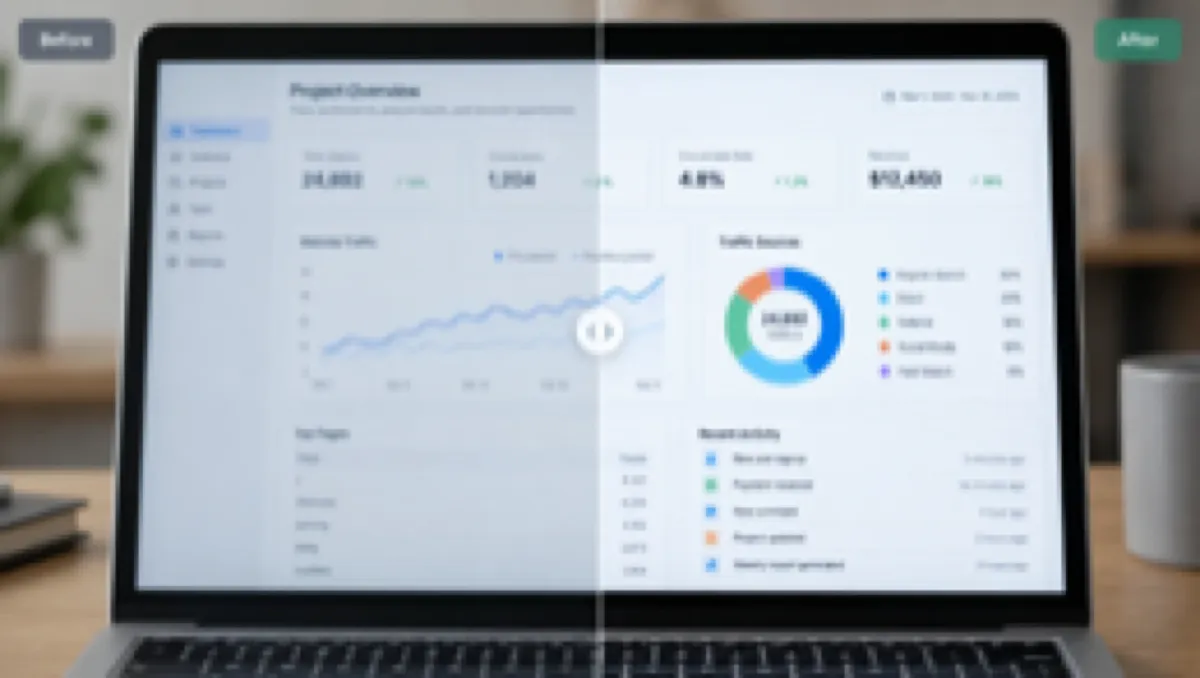
03
Increase edge contrast in menus, charts, and interface text without rewriting or correcting the words.
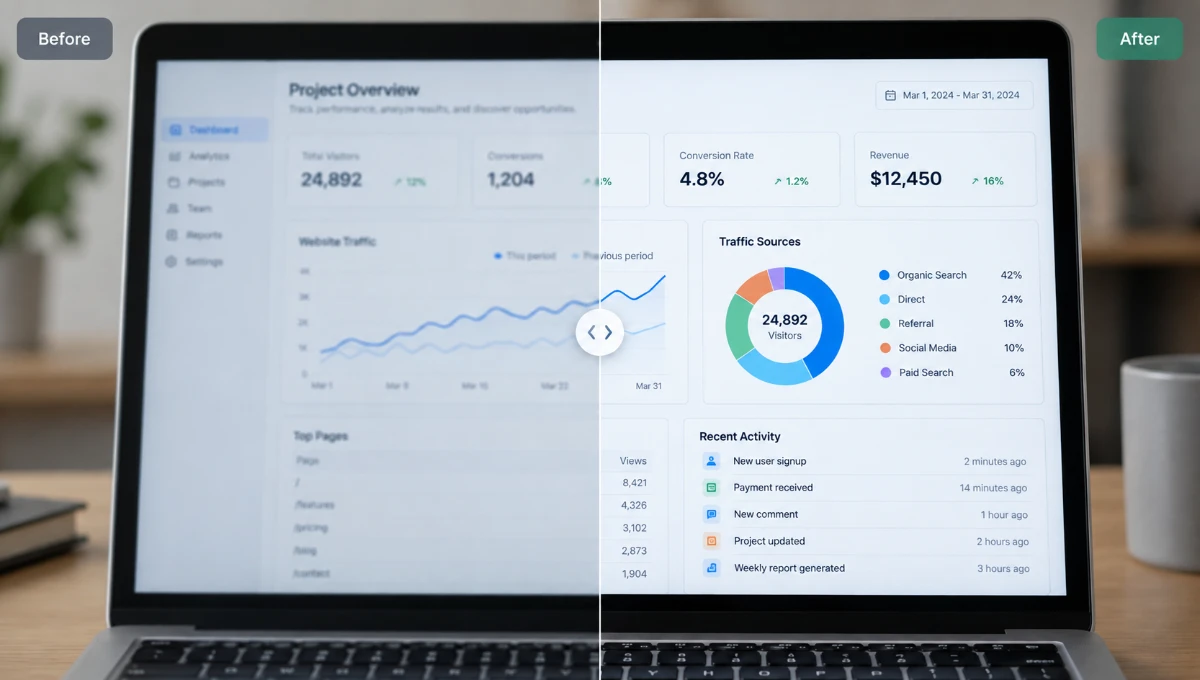 BeforeAfter
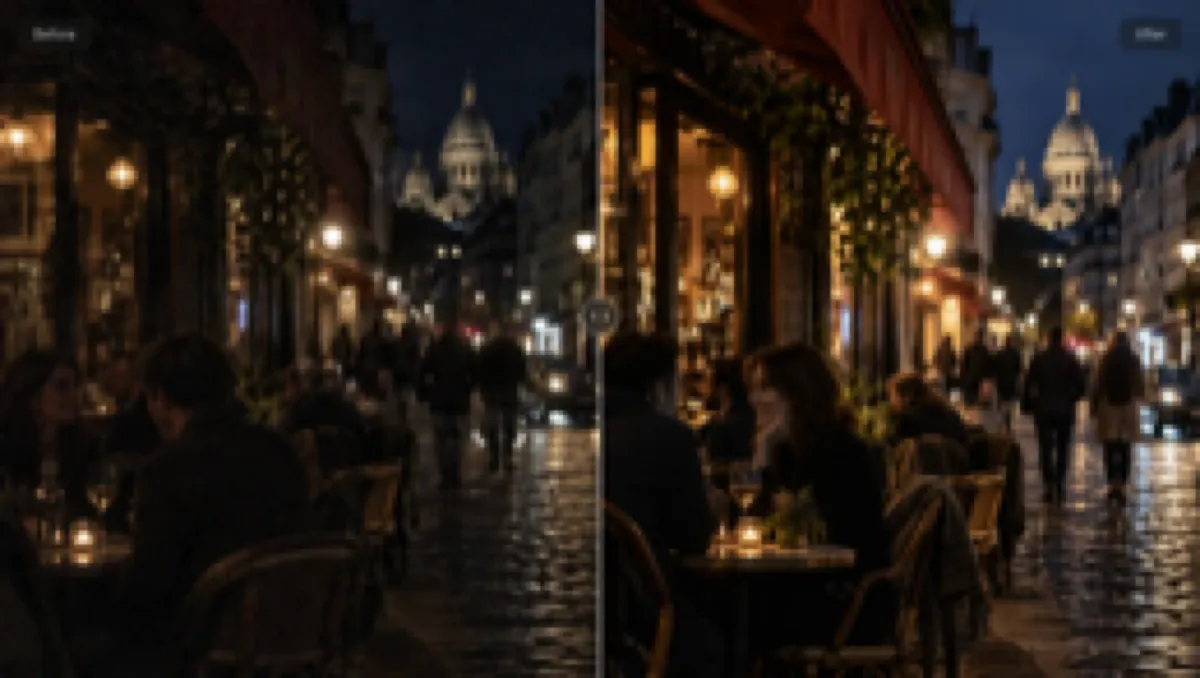
04
Lift useful shadow detail and soften harsh highlights while keeping the scene natural.
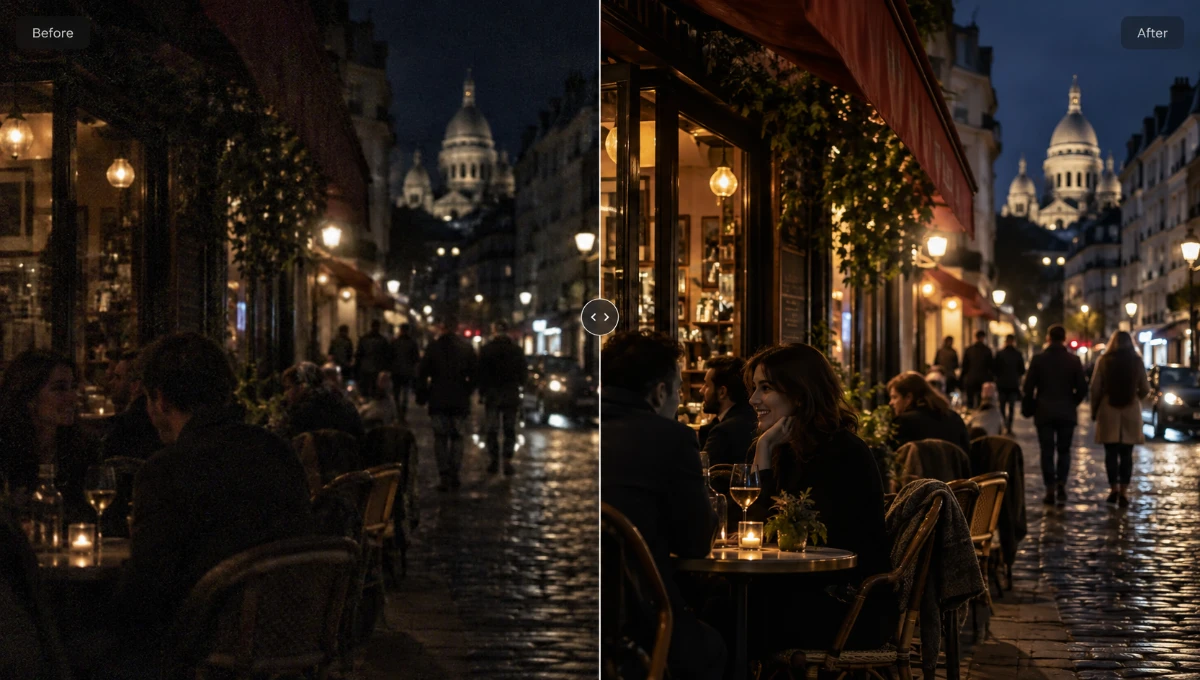 BeforeAfter
05
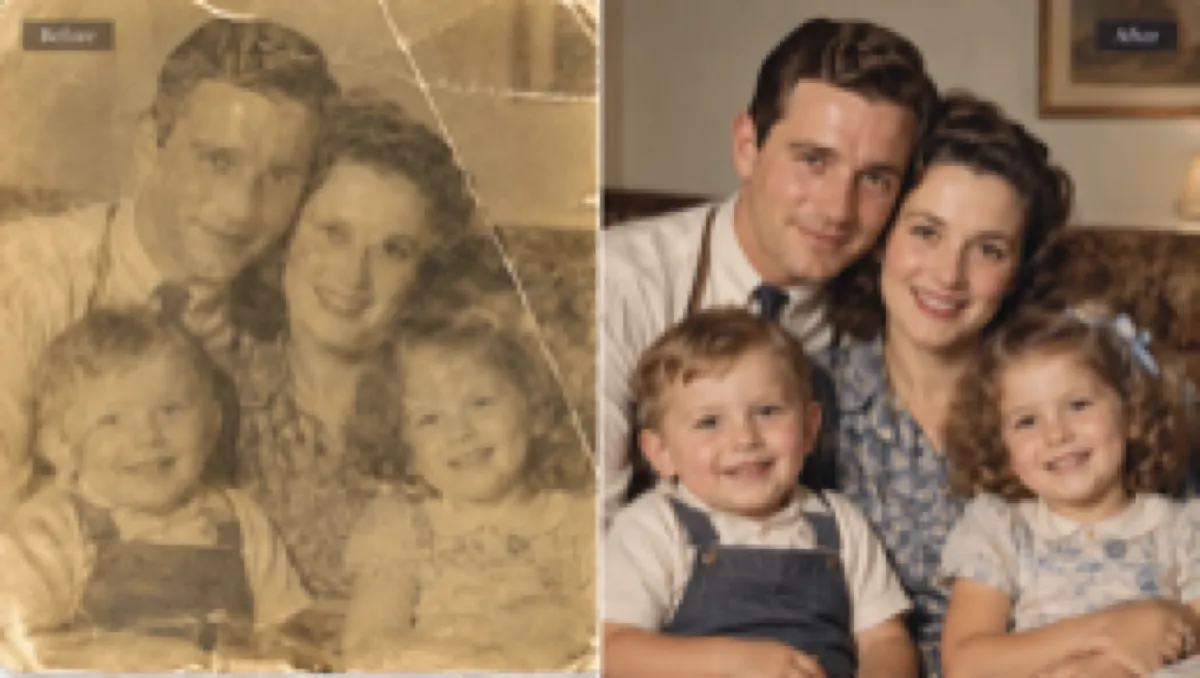
Remove dust speckles, scratches, and scanning noise in vintage photos while preserving the original people and scene.
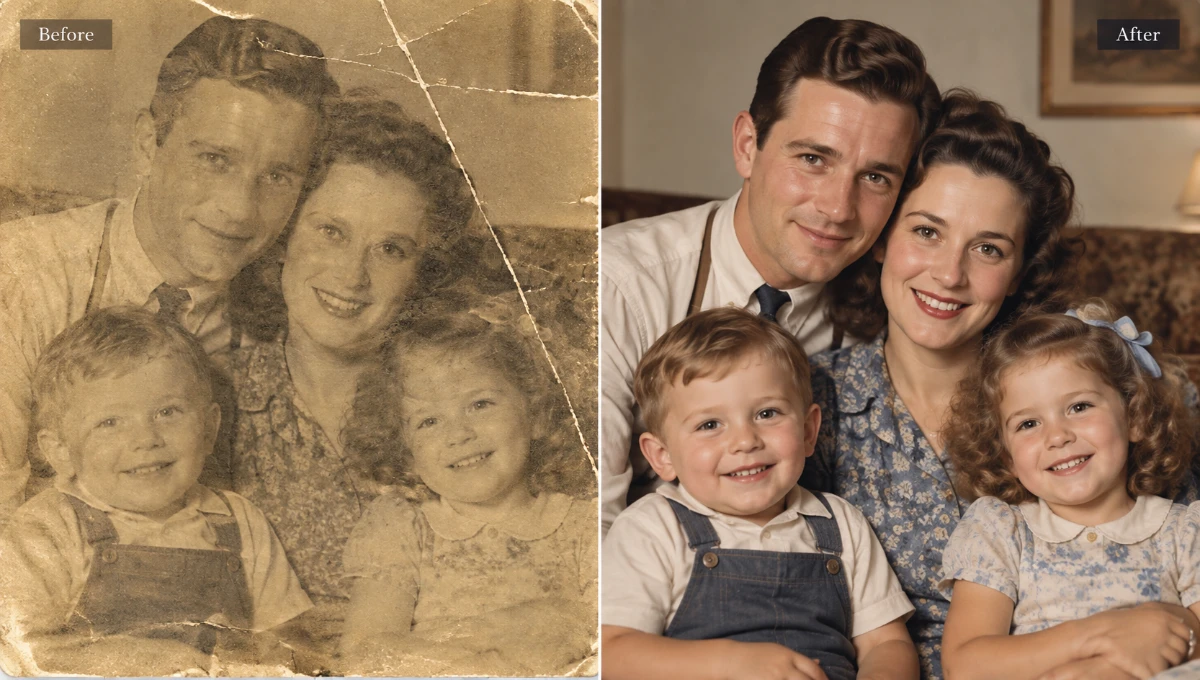 BeforeAfter
06
Improve detail separation in foliage, rock, water, and distant structures without changing the place.
 BeforeAfter
Upload any JPG, PNG, or WebP photo to restore sharpness and 4K clarity in seconds. Convert images to 4K resolution with free local preview or deep AI enhancement.
Enhance My Photo FreeUpload, choose the enhancement strength, compare the result, and download — with the cost visible before AI processing starts.
Choose a JPG, PNG, or WebP image. The tool prepares it for enhancement without starting a run yet.
Select Quick Enhance for a free browser preview, or Standard for AI-powered detail recovery. Credits are shown before each run.
Start processing when your category and strength are set. A visible progress state keeps you updated.
Review the original next to the result, then download. Paid balance = watermark-free; free tier adds a small watermark with an upgrade option.
A free local preview, AI-powered detail recovery, and transparent pricing — all in your browser, on any device.
Quick Enhance runs the enhancement in your browser. The source and result are sent temporarily for content safety screening; no account required.
Standard enhancement uses Standard Model to rebuild edges, sharpen texture, and restore fine detail that simple filters can't recover.
Compare the original and enhanced versions on the same screen before downloading, so you always know what you're getting.
Open EnhancePhoto in any modern browser on desktop, tablet, or phone. No downloads, no plugins — just upload and enhance.
The exact credit cost is shown before every AI run. Quick Enhance is always free; Standard costs 2 credits per image.
You keep the rights to your photos. Use enhanced images for e-commerce, social media, or print — just follow the Acceptable Use Policy.
Answers about improving image quality, blurry photos, supported formats, pricing, privacy, and downloads.
Upload your JPG, PNG or WebP photo and select Quick Enhance for a free local enhancement with input and output content safety checks. Standard AI uses a generative model for deeper restoration.
Yes. Traditional filters only boost edge contrast, which adds noise. EnhancePhoto's Standard AI model uses generative detail reconstruction to rebuild missing facial features, natural hair textures, and fine surface details, even on heavily blurred or out-of-focus photos.
Yes. Choose the Text & Screenshot scene. The enhancer boosts edge contrast and sharpens blurred typography and chart lines, making small characters and numbers significantly easier to read without altering the original text.
Yes. EnhancePhoto is a responsive web application designed for mobile and desktop alike. You can choose a photo from your iPhone camera roll or Android gallery, unblur it instantly in Safari or Chrome, compare before-and-after live, and download with no app install required.
Quick Enhance exports are free and watermark-free; source and result are temporarily sent for safety checks. Standard AI watermark-free downloads depend on your paid credits.
Standard AI focuses on detail recovery and sharpening rather than guaranteeing an exact 2× or 4× pixel scale. If your project specifically requires a deterministic 2K or 4K pixel dimension for commercial print, e-commerce banners, or large screen displays, use our dedicated AI Image Upscaler tool to upscale resolution up to 400% without distortion.
Yes. Standard AI reduces scanning haze, softens photo grain, and recovers lost facial detail. For severely damaged, cracked, or torn physical photographs with historical value, visit our dedicated Photo Restoration tool for specialized generative repair and scratch removal.
EnhancePhoto accepts JPG, PNG, and WebP files up to 10 MB. Quick Enhance exports locally as PNG, JPG, or WebP; Standard AI uses the provider's native output format.
Choosing a photo starts the flow right away. Quick temporarily sends the source and processed output for content screening, then enhances locally in your browser. Standard uploads the image to the AI provider. You can change settings and click Reprocess to run again.
Yes. You retain full rights to your original photos. You are welcome to use enhanced images for e-commerce, advertising, social media, or print, provided you comply with our Acceptable Use Policy.
Email our team at support@enhancephoto.org. Our Privacy Policy, Terms of Service, and Acceptable Use Policy are always accessible in the footer.